Every now and then, I decide to do something well outside of my comfort zone. So when I was messaged by Ravi from the Retro Hour asking if I would like to be on his team for the yearly Christmas quiz, I decided to say yes before I started talking myself out of it!
We recorded the show on the 14th of December, and it was released on the 22nd. I won’t spoil anything, so be sure to listen on your favourite podcast service or on YouTube, as they now do a video version of the show.
If you haven’t come across this podcast before, I highly recommend exploring their extensive backlog of episodes, as they have featured some amazing guests in their interview section.
I was so nervous going into this, but I made it through and managed to answer some questions, so I’ll call it a success 🙂
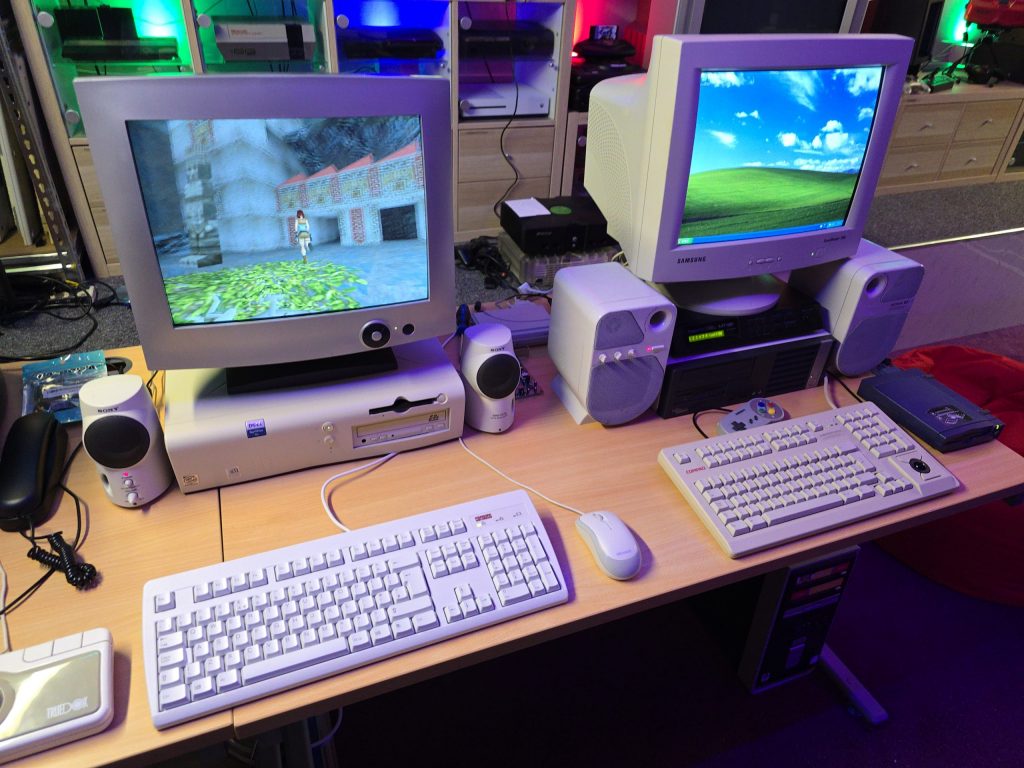
After fixing the 3DFX card, I sat back and looked at the LCD monitor I was using, and decided it just wasn’t right for the system. But the problem was, I’d ran out of suitable CRT monitors.
I did spot one in a skip at the local recycling centre a few days back, but as usual, you’re not allowed to actually recycle, and it was destined for the landfill somewhere instead.
So, since they are so hard to get shipped without being destroyed in the post, I decided to put a wanted ad up on Facebook marketplace. To my surprise, I actually received a message today from someone saying they had one, just a few minutes up the road from me.
I went up to collect and met with a very nice guy with a 17″ e-machine CRT monitor in immaculate condition. I couldn’t believe my luck, it was exactly what I was after. And, he wouldn’t even accept any money for it, he was just happy it was going to a good home.
After getting it home, I gave it a quick clean and hooked it straight up to the VooDoo card.
It looks great sitting next to my Windows XP gaming PC.
The next step is to set up the network card so I can get some Grand Theft Auto multiplayer action going on.
I already have a few retro PCs in my collection, but I was missing one specific era, and that was the era when the 3dfx VooDoo cards hit the shelves. A friend of mine got one for his pc, and it was a complete game-changer back then. Everything went from blocky-looking textures to gorgeous, smoothed polygons.
The price of VooDoo cards is now quite high, costing around £120 for a working one. But where is the fun in buying a working one when you can buy spares and repairs for a 3rd of the price 🙂
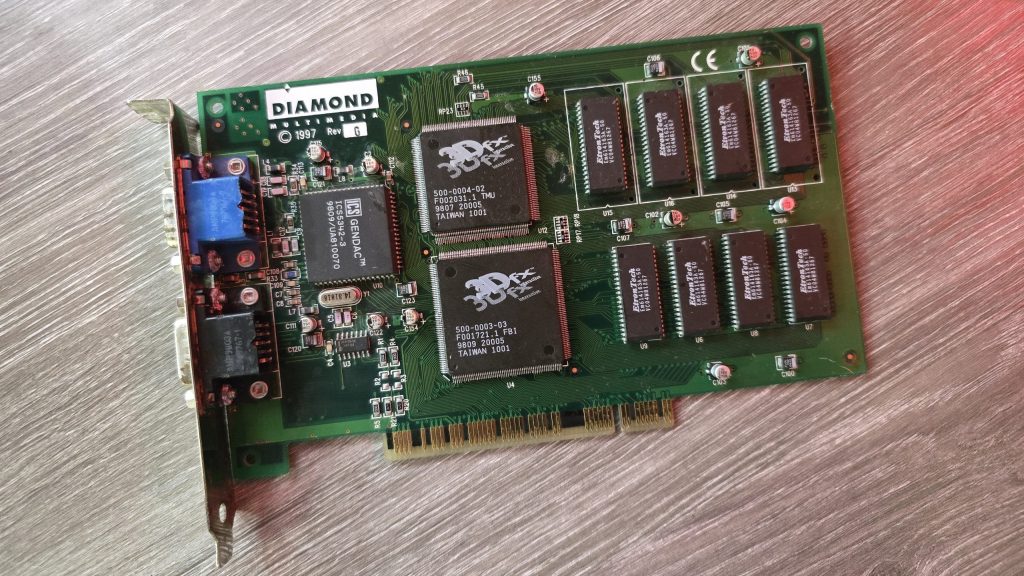
So for 39.99 inc postage, I picked up a Diamond Monster 3D VooDoo card. I had a small concern that the previous owner had admitted to fixing a couple of traces, which meant he had at least attempted to repair this card and had not succeeded. So could I do any better?
I gave the card a quick clean and inspected the traces that he had already repaired. I guess this card was chucked in a box at some point and had gotten scratched. They looked fine, but I re-did them just in case. I also noticed a couple of missing capacitors. There were only decoupling caps, but I replaced those anyway.
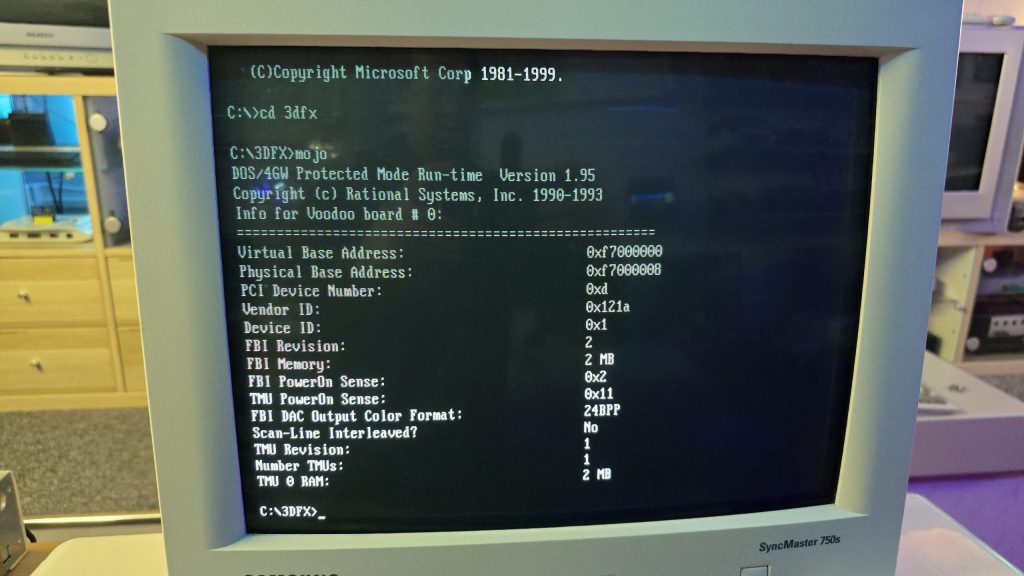
The next step was to test it out and see what state it was in. And things were not looking good. I ran the 3DFX diagnostic utility mojo.exe from DOS, and it just hung the system straight after DOS4GW.exe was loaded.
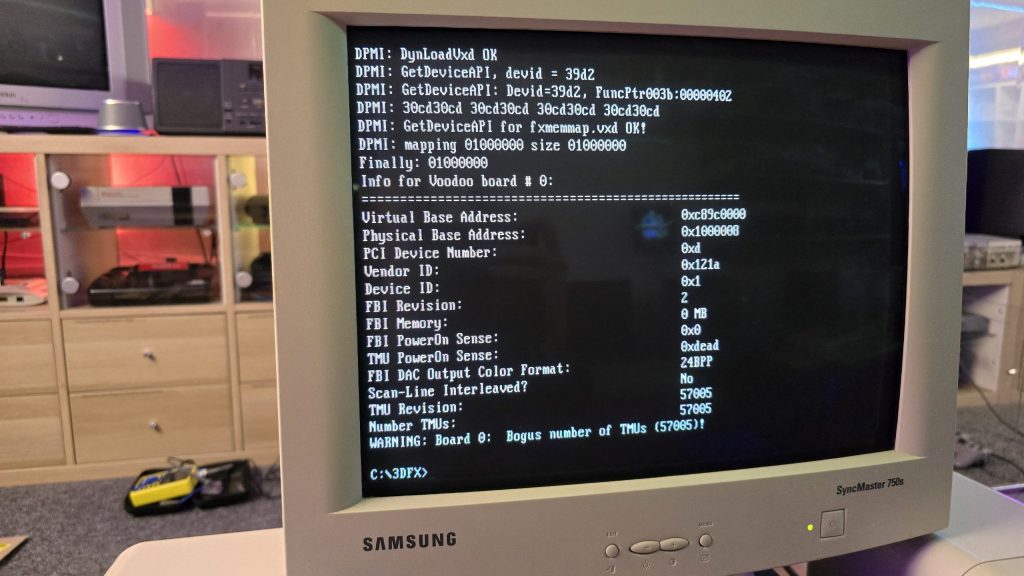
So I then tried booting into Windows 98. Amazingly, it did actually detect the card and installed the driver, but once installed, I got a yellow exclamation mark saying there was a resource conflict. Hmmm, that’s a bit odd. Just as a test, I went into the card settings and changed the memory address to a different one that wasn’t conflicting. I then launched the command prompt from Windows and tried mojo.exe again. This time, I got a different result.
Some noteworthy things here are that it was at least detecting the card now, but no memory on the card and the error code 0xdead didn’t fill me with confidence. The Bogus number of TMUs 57005 error is also hexadecimal for the word DEAD.
The above test gave me some clues, and I started to wonder exactly how a memory space gets assigned to a card when a PC turns on. Without changing the address in Windows, I was still just getting a complete hang in DOS, so it seemed this initial process wasn’t working properly.
I read a whole bunch of docs and figured out that when a PC turns on, the motherboard will probe the IDSEL pins on each PCI slot and communicate with the device on each slot to get the vendor ID and hardware ID. This part must be working, as Windows detected the device.
The next step involved BAR registers (Base Address Registers). This sounded promising. Essentially, each PCI device can have up to 6 BARs. When the card is initialised, these BARs will be queried, and the result of these queries will tell the PC how many chunks of memory space or I/O space the card needs to function. This part of the process is reliant on the PC talking to the card over the PCI address bus. If this process failed, then the card could report that it needs either an incorrect amount of memory or all of it!
At this point, I had already reflowed all the pins on the FBI chip and TMU, as I knew this was a common failure on these cards. But the problem remained, so I needed to check all the address lines. I tried to find a nice picture of the PCI slot pinouts, but since the card doesn’t have all the pins present, it was difficult to work out the pin numbers, so I went with a different approach. Every pin on the 3D X card should in theory, be connected to the FBI chip. So I put my meter on continuity, put one lead on the first PCI card pin and then ran the second along all pins of the FBI chip. As long as I got at least one beep somewhere, I assumed the pin was connected fine.
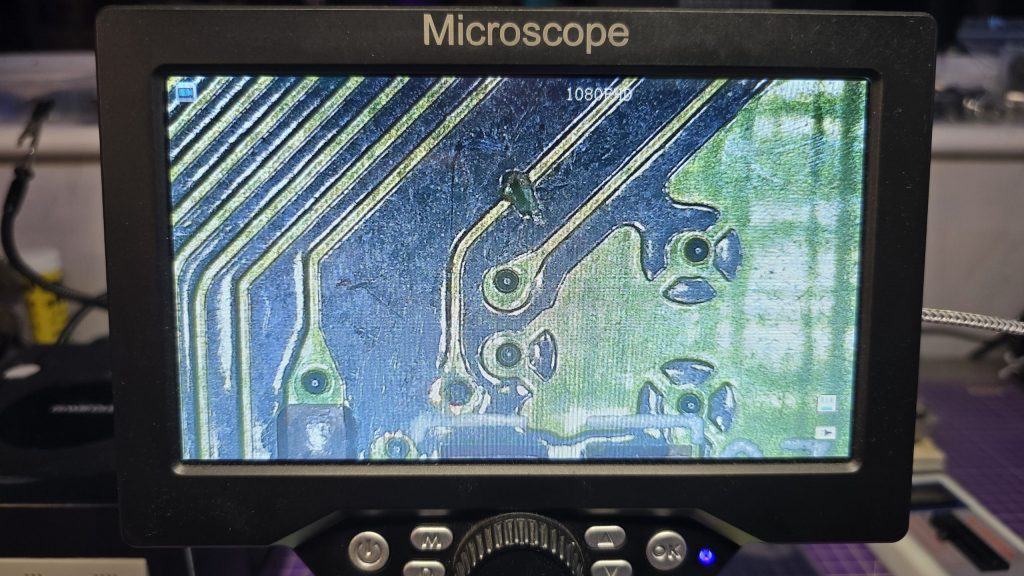
I eventually came across one pin that didn’t seem to be connected to any pin on the FBI chip. So I followed the trace from that pin and found a smoking gun!
Checking continuity between the PCI pin and the via after the break confirmed that there was no continuity. So I carefully scraped away at some of the solder resist and placed a bodge wire across the gap. After confirming connectivity, it was time to do another test.
Result!!! After booting directly into DOS and running mojo.exe again, no hanging and everything looked good to go.
So once again, I booted into Windows, this time with no device conflicts. I ran one of the 3DFX demos, and it launched fine, but with one small issue. I could see a pattern of dots on some of the textures.
This was a different fault now, so it was time to move my attention to the TMU chip instead. After carefully inspecting my re-flow work, I noticed the slightest solder bridge between two pins relating to the address bus between the TMU and the memory chips. After clearing this final issue, everything is now working perfectly and I am in possession of a fully working £39.99 VooDoo card.
I decided I wanted to pick up an Epson HX20. The fact that it has a built-in dot matrix printer seemed like it would be a pretty cool thing to mess around with.
After a bit of research, I discovered the main issue is that they came with a Ni-Cad battery installed, which usually leaks and causes damage to the computer. But a bad trace or two should be a simple enough fix, right?
So I trawled eBay and found a spares and repair unit for a cheap price. After all, I didn’t want to spend much on a computer that has a high chance of not working. And the majority of these computers are sold as untested or spares and repairs for that very reason.
Well, the device turned up, and upon unpacking it, I could already smell the leaking battery, but this was expected, so I took it apart to check out the LCD board, which normally takes most of the damage. I gave it a quick inspection to see if any damage was visible. And, well, yes, there was some visible damage lol.
From what I could see, a large number of traces were destroyed. So let this be a warning to anyone who is going to take a chance on one of these, if it’s “untested”, this is probably the state of it!
I downloaded the schematics and started testing the connections and marking off which ones were not connected. After a while of doing this, it became apparent that this board was pretty much destroyed. But I didn’t instantly give up (Although I probably should have).
I wanted to try one other thing: could I actually remake the board from scratch? This was a very ambitious project, and I didn’t really hold out much hope, but I think on the first attempt, I actually got a lot further than I expected.
I spent quite some time designing the PCB and re-creating some of the components in Easy EDA, as they weren’t in any of the libraries. The LCD screen for example, needed to be measured precisely and drawn manually.
Eventually, I ended up with this:
I had to manually route quite a lot of the connections, as the auto routers just couldn’t work it out, even on a 4-layer PCB.
But eventually, I ended up with a PCB that said all traces were connected. So I took the plunge and placed an order with JLCPCB. When they arrived, I then had the next challenge of unsoldering all the original parts and re-fitting them to my new PCB.
It was then time to give it a test. Would I see anything? Would lots of smoke pour from the display?
Well, to my surprise, it actually kind of worked. The main issue I had though, was that the alignment and fitment of the LCD screen wasn’t perfect, and I think the pin spacing was also very slightly out.
So, to be fair, I think I did a pretty good job and probably went above and beyond what anyone else would do to try and recover one of these computers.
I have proved that the actual computer itself is working fine, but I didn’t test the printer or tape drive on this unit. Now I have one of the boards made up, which I can directly compare against the original board, I can see some errors that if corrected, may actually get this working again 100%.
The problem is, changing these parts means a complete re-route of all the PCB traces again, which was quite time-consuming the first time around.
For now, I took the coward’s way out and purchased another HX20, which is nearly fully working and the only issue is with the cassette drive, which I think I can handle! I also tested the expansion unit from the old machine and tested it with the new one, so confirmed that it works fine.
So here is the new machine in all it’s glory!
I think I may give the LCD board another go, as it would probably be useful to the community to recover from this common fault on the HX20s. But, I also think I may take a break for a little while first, as my dreams have been haunted by routing PCB traces
Ok, so the information in this post is pretty niche. I’m only aware of 4 of these computers in existence and currently none of them have the original remote control.
Mostly, this isn’t an issue because you can control the majority of the TV functions by the buttons on the screen. But ever since I’ve owned this computer, I’ve never found a way to switch to the scart input.
Over the last couple of years I’ve poked and prodded around to try and find out how the system works, through dissambling the DLL files I discovered that the computer and TV talk to each other using the I2C protocol. I also found that the 10pin connector that plugs into the riser board contains the SCL and SDA lines needed for the I2C protocol.
Today, I was having another play around and decided to hook up some wires and start sniffing the I2C bus to see if I could work anything out. The only issue is I forgot which pins they were! So I probed around and quite quickly found the SDA line, but wasn’t 100% sure which pin was SCL as none of them looked like what I expected and it had to be there.
I decided to hook up some dupont cables and just connect the known SDA wire and the ground wire, and then I would use the 3rd wire to go through each pin and work out which wire was SCL.
To do this, I would connect a wire, boot into windows and use one of the known “hot keys”, CTRL+ALT+T. This hot key tells the TV to switch to TV input, then you can use CTRL+ALT+P to switch back to PC.
This can also be achieved by pressing the two volume buttons together at the same time on the front of the unit.
This is where things happened that were VERY unexpected. Just using my 3 wires, I found the 3 pins where the hot key worked, so I must have located the SCL line. Great! But when I pressed CTRL+ALT+T a second time, the TV switched to the scart input!
What the hell! I pressed it again and it switched the AV2 which is the phono ports for composite input. Each time I pressed the key combination it cycled through the 3 inputs.
I really thought I’d gone mad. Surely all this time it wasn’t as simple as pressing the hot key multiple times? Somebody must have tried this! (Including me!)
I removed my jumper cables and plugged the original connector back in and booted up the PC. Pressed CTRL+ALT+T and it switched to the TV as expected, I then pressed it a second time and…….
Nothing! It just stayed on the TV channel. Something odd was going on.
I reverted back to my 3 dupont wires and once again I could switch inputs. So I then started connecting the remaining wires one at a time and testing the hot key. As soon as I reconnected the black wire, I was no longer able to switch inputs.
Without the black wire connected, the CTRL+ALT+P hot key to switch back to PC input no longer works, but you can still switch back to the PC by pressing the two volume buttons.
This was a very random discovery, and I’d love to take full credit for it, but it was pretty much blind luck that I stumbled onto this.
I do still want to investigate this further, as I am sure there is a shared memory address somewhere that if I configure a certain way it will send I2C codes to the TV. And now I can switch the inputs I want to capture the I2C commands and see if they are any different with the black wire connected vs not connected. But that can wait for another day now.
For the time being, I’ll just sit here and play a bit of Super Mario on my NES, hooked up to the PCTV via scart cable 😀
In the UK, we had the Nintendo Entertainment System. But over in Japan, there were a few different systems released. One of these was made by Sharp and was the Twin Famicom. It took the normal Famicom cartridges but also included the Famicom Disk System which was an add on drive which allowed games to be played from a proprietary floppy disk.
I can’t resist things with floppy disks, so when one of these came up for sale on one of the retro Facebook groups with a bunch of cartridge games and some floppy disk games, I had to get it.
I have now also obtained a Famicom Everdrive style SD cartridge for the unit and also an FDS Key which I will do a seperate write up about soon. It’s essentially a floppy drive emulator, but with it you can also transfer downloaded FDS games onto the original floppy disks, which I thought was kind of neat.
You might wonder why I would want to overwrite original games, but these disks were designed to be written too. Over in Japan you could take your disk into a store, purchase a game and then using a special kiosk it would write the game to the disk and you would take it home and play it. Pretty neat concept for it’s time.
I look forward with having a play around with this system to see what it offers over the standard NES that we got in the UK.
Whilst sat browsing Facebook one day, I saw a post from someone local asking if anyone had a CRT for sale as theirs had broken, and they included a photo of their lovely 28-inch Sony Trinitron TV. I messaged him and asked what the fault was, and apparently the picture went off and was now just blinking the power LED with 2 blinks, which according to the service manual translates as Over Current Protection (OCP) triggered.
I said that if he was going to bin it, then I would like to pick it up and attempt to repair it. After all, you can’t really learn to repair stuff without having some broken ones to fix.
A couple of weeks later, he messaged me to say if I wanted to pick it up, then I could have it. So I got in the car and went and collected it. With some help from the Mrs, we got it home and down into my workshop, where I could then start my testing.
The first thing I needed was lots of information about CRT TVs and exactly how they work. And for this, I highly recommend watching videos by Randy Fromm on YouTube (Start with this one) After watching those, I had a very good understanding of what I was looking for. Even so, this Trinitron turned out to be quite a puzzle.
The first thing I did was test the TV to see what happened when I powered it on. And just as the guy had said, upon powering on, all I got was a blinking power LED flashing twice, then pausing and repeating. The issue with this error code is that it isn’t really very descriptive. Basically something, somewhere in the TV was apparently pulling too much current.
The other thing I noticed was that I wasn’t hearing any high voltage at all. Normally, when you power on a CRT, you will hear a crackling sound from the high-voltage circuit. So I downloaded the service manual for the set and started to look at all of the voltages to start with. This wasn’t that easy, because as soon as the TV detected the overcurrent, it shut down the power supply! Luckily, I have an oscilloscope, and this meant I could visualise the voltage for the very brief moment it was there.
From what I could see, the main voltages were present, specifically the 135V B+ voltage, which would go on to generate the high voltage via the flyback transformer. Another common fault on CRTs is the Horizontal Output Transistor; without this part working, you won’t get any image on the screen, and that part could easily pull too much current if it were to be faulty. But after testing it, it looked fine to me, and on my scope, I could see the required 135V pulses being sent to the flyback. So I really expected to hear some high-voltage crackling when the set powered on.
After looking around, I found that two fusible resistors had blown, which were right next to the flyback. I was hoping that they may have been the cause of the issue. But I wasn’t going to be that lucky, and after replacing the resistors, there was still no life in the set.
At this point, I decided I needed to test or replace the flyback. Unfortunately, I didn’t have any way of testing it at the time. So I looked around and luckily I found a replacement flyback on eBay from Malaysia. The part was new old stock, so I snapped it up and waited for it to arrive.
Fast forward to delivery day, and I swapped the flyback over, held my breath and hit the power button. For a split second, I heard a nice static crackle from the CRT, and then it shut down and sat blinking its LED at me. At least this proved that the flyback was indeed faulty.
The next few weeks were slow and painful. My bedtime reading was the schematics for all the various boards inside the TV. Every now and again, I would have an idea of something to test, so I’d run down, test it and come back to bed depressed that it still wasn’t working.
I went through all of the test points on the CRT and compared the waveforms to what was in the service manual and I just couldn’t find anything wrong.
I then had an idea, a potentially dangerous idea which I don’t think I would recommend to anyone! But I had basically run out of things to try.
The way the Over Current Protection circuit worked, is that it measures the voltage drop across a resistor and if that voltage drop was too high (two much current) it would trigger an OCP line that originates from the power supply board and gets sent to the microprocessor board which would then shut down the TV.
So what if I simply disconnected the OCP wire between the power supply and the processor? It wouldn’t get the OCP signal and would keep the TV running. Maybe then, whatever part was causing the issue would very quickly get hot, and using my thermal camera, I could see where the issue was.
Either that, or it would burst into flames and I wouldn’t need to worry about repairing it anymore 🙂
So, I pulled the OCP wire out of the connector block, pointed my thermal camera at the back of the TV and nervously hit the power button.
And……..
It came on and just worked. I carried on looking around with my camera, but nothing looked wrong. So I left it running for a while and carried on monitoring the situation. After about 20 minutes, everything was still fine, so I powered it off, reconnected the OCP wire and was straight back to a blinking light again.
After scratching my head until I had no hair left, my conclusion was that there wasn’t an overcurrent issue, but actually an issue with the overcurrent protection circuit itself.
I took a look at the schematics for this section of the board, didn’t understand how on earth it was supposed to work, so I went and watched some videos about over-protection circuits. The main thing seemed to be that for the OCP to trigger, there would need to be a large voltage drop across the current sensing resistor, but I was getting a 0.13V drop, which seemed perfectly fine to me. So the next step in the circuit was two transistors, which would monitor that voltage and turn on when overcurrent was detected. It looked like one of the transistors was outputting the OCP signal from its emitter, but with the voltage being in spec, there was no reason why it should. So, just for completeness, I swapped out both of these transistors as there wasn’t much else left that it could be.
After replacing these parts, I finally had a fully working CRT again and was able to reconnect the OCP wire.
So the moral of the story, although these newer CRT sets have the luxury of running their own diagnostics. Don’t just blindly trust what they are saying, and don’t rule out the fact that the diagnostic circuit itself could be the fault!
I would also like to point out that although this story seems quite short, these events were spread out over 6 weeks! But I do feel I have learnt a hell of a lot about CRTs on the journey so for that I am quite happy with myself.
Nothing left to do now but kick back and play a bit of Jumping Flash on the PlayStation to celebrate my victory 🙂
Back during my early school days, some of the classrooms had BBC Micros in them along with a beige metal CRT monitor with Cub written on it. These displays were nicely matched to the BBC and were very common at the time.
I happened to log into Facebook at a perfect time last week when a guy I know (Zeb) posted on the Acorn group that he had a Cub monitor free for collection for whomever claimed it first. He doesn’t live that far away from me so I jumped at the offer.
Zeb then messaged me to say, he forgot to mention that it was broken and did I still want it. To most people this would have put them off, but for me it made the offer even better! Now I had a reason to learn more about CRT repair!
I went and collected the monitor and brought it back home and after an initial inspection I plugged it in to see what happened. The monitor fired up, I could hear the high voltage working and then a single horizontal line appeared across the center of the screen so I turned it off before any damage was done to the phosphor.
The schematics for these monitors are available to download so I grabbed them and started to look at the vertical deflection part of the circuit. This seemed to get it’s power from a section of the circuit that contained a nice big capacitor that was connected to ground. This looked like a perfect candidate for the fault so I removed the capacitor and tested it with my ESR meter and sure enough it was shorted. I didn’t have a replacement so I ordered one and decided to do some more research while I waited for it to arrive.
I soon discovered that this fault was actually a fairly common issue with these displays and it often kills one of the fusible resistors at the same time. So I tested this and sure enough that resistor was also dead so I ordered some replacements.
Once those parts arrived I fitted them and turned of the monitor and was greated with full vertical deflection.
I was pretty happy at this stage but that was short lived.
I connected up the BBC and powered the monitor back on. Instead of a nice picture, I got a weird squiggly pattern and then magic smoke started to come from the monitor so I quickly powered it off again. The smoke had come from the resistor I had replaced. So it looked like there was a bigger issue that had possibly caused the capacitor and resistor to die in the first place.
I then spent a couple of hours looking at the schematics and testing capacitors and resistors in the vertical deflection section and everything i looked at tested fine.
The service manual had several images of test points and what the waveforms should look like. So I grabbed my scope and started looking at these signals. Most of them were fine but I had no field output signal. I was pretty convinced now that the TDA1170 IC was internally shorted and was causing a high current draw which killed the resistor.
So, I went back on eBay and found out that these ICs were still available. A couple of days later it arrived and as soon as I finished my day job and went down to my workshop and fitted the new part. Whilst holding my breath, I powered the monitor back on and everything seemed to be fine, full vertical deflection and no smoke.
It was now time to connect the BBC back up and see what happened. This time I got a nice clear image and still no smoke!
This was a pretty satisfying repair and during this I have been watching a bunch of videos about CRT theory and repair. The best ones I have found so far are the CRT workshop videos by “Randy Fromm” on YouTube. I would highly recommend watching these as they contain a wealth of information and real world experience within them.
I also have another CRT here now which I am trying to repair, which is a 28inch Sony Trinitorn that has an over current protection fault. That was is going to be a bit harder to troubleshoot but my understanding of how these CRTs work is much greater now so I am confident that one day I will get it fixed.
Although the keyboard on the Sam is quite nice to type on, you just can’t beat the feel of a hugh quality mechanical keyboard. Luckily for me, Colin at Quazar builds a lovely mechanical keyboard for the Sam and this evening I got around to fitting it.
The install process is pretty simple, it just plugs into the original keyboard slots and then you just swap over the original key caps.
I went for the slightly clicky keys as it’s what I prefer, but he does give the option of quieter keys switches also.
It’s a really nice product, especially if your Sam’s keyboard membrane has either broken or starting to wear out. I’d highly recommend it 👌
Another recent purchase was this Amstrad 6128 plus. The only thing that was described as being wrong with this one was the disk drive not working properly. I first replaced the drive belt as these are a very common failure point. This got it mostly working but it still seemed to be struggling to read some of my disks. So I hooked up the scope and just tweaked the stepper motor alignment and now it is working spot on.
Next step will be to give it a bit of a clean and then I think this version of the Amstard is going to take up one of my permanent setup spaces, as I don’t currently have an Amstrad computer out on display to easily play around with. So I will get the M4 board hooked up to this one.
Quite an easy repair on this one, but happy to have a working example in my collection.