Posted on Leave a comment

3DFX Repair – Diamond Monster 3D VooDoo 1

I already have a few retro PCs in my collection, but I was missing one specific era, and that was the era when the 3dfx VooDoo cards hit the shelves. A friend of mine got one for his pc, and it was a complete game-changer back then. Everything went from blocky-looking textures to gorgeous, smoothed polygons.

The price of VooDoo cards is now quite high, costing around £120 for a working one. But where is the fun in buying a working one when you can buy spares and repairs for a 3rd of the price 🙂

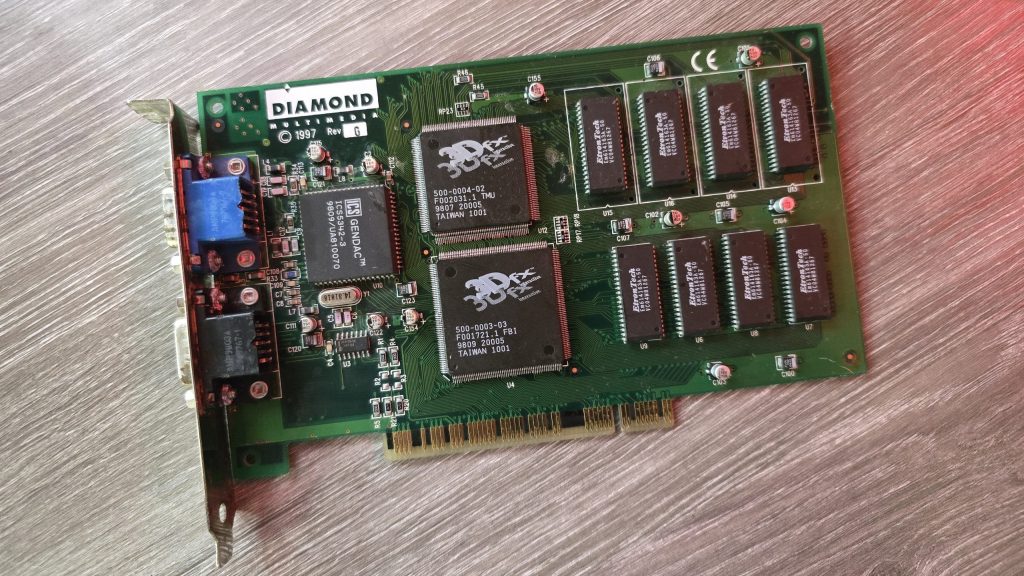
So for 39.99 inc postage, I picked up a Diamond Monster 3D VooDoo card. I had a small concern that the previous owner had admitted to fixing a couple of traces, which meant he had at least attempted to repair this card and had not succeeded. So could I do any better?

I gave the card a quick clean and inspected the traces that he had already repaired. I guess this card was chucked in a box at some point and had gotten scratched. They looked fine, but I re-did them just in case. I also noticed a couple of missing capacitors. There were only decoupling caps, but I replaced those anyway.

The next step was to test it out and see what state it was in. And things were not looking good. I ran the 3DFX diagnostic utility mojo.exe from DOS, and it just hung the system straight after DOS4GW.exe was loaded.

So I then tried booting into Windows 98. Amazingly, it did actually detect the card and installed the driver, but once installed, I got a yellow exclamation mark saying there was a resource conflict. Hmmm, that’s a bit odd. Just as a test, I went into the card settings and changed the memory address to a different one that wasn’t conflicting. I then launched the command prompt from Windows and tried mojo.exe again. This time, I got a different result.

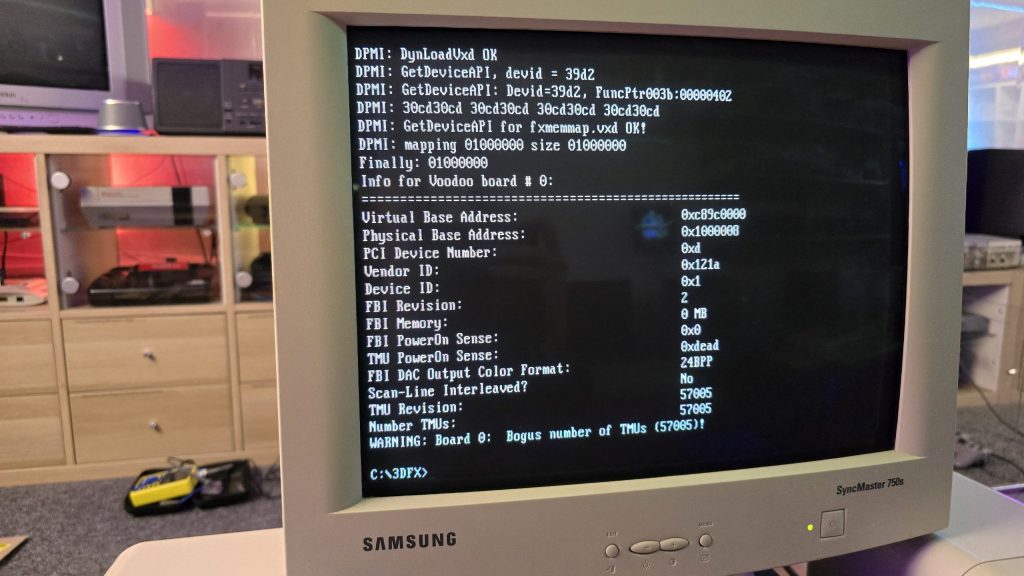
Some noteworthy things here are that it was at least detecting the card now, but no memory on the card and the error code 0xdead didn’t fill me with confidence. The Bogus number of TMUs 57005 error is also hexadecimal for the word DEAD.

The above test gave me some clues, and I started to wonder exactly how a memory space gets assigned to a card when a PC turns on. Without changing the address in Windows, I was still just getting a complete hang in DOS, so it seemed this initial process wasn’t working properly.

I read a whole bunch of docs and figured out that when a PC turns on, the motherboard will probe the IDSEL pins on each PCI slot and communicate with the device on each slot to get the vendor ID and hardware ID. This part must be working, as Windows detected the device.

The next step involved BAR registers (Base Address Registers). This sounded promising. Essentially, each PCI device can have up to 6 BARs. When the card is initialised, these BARs will be queried, and the result of these queries will tell the PC how many chunks of memory space or I/O space the card needs to function. This part of the process is reliant on the PC talking to the card over the PCI address bus. If this process failed, then the card could report that it needs either an incorrect amount of memory or all of it!

At this point, I had already reflowed all the pins on the FBI chip and TMU, as I knew this was a common failure on these cards. But the problem remained, so I needed to check all the address lines. I tried to find a nice picture of the PCI slot pinouts, but since the card doesn’t have all the pins present, it was difficult to work out the pin numbers, so I went with a different approach. Every pin on the 3D X card should in theory, be connected to the FBI chip. So I put my meter on continuity, put one lead on the first PCI card pin and then ran the second along all pins of the FBI chip. As long as I got at least one beep somewhere, I assumed the pin was connected fine.

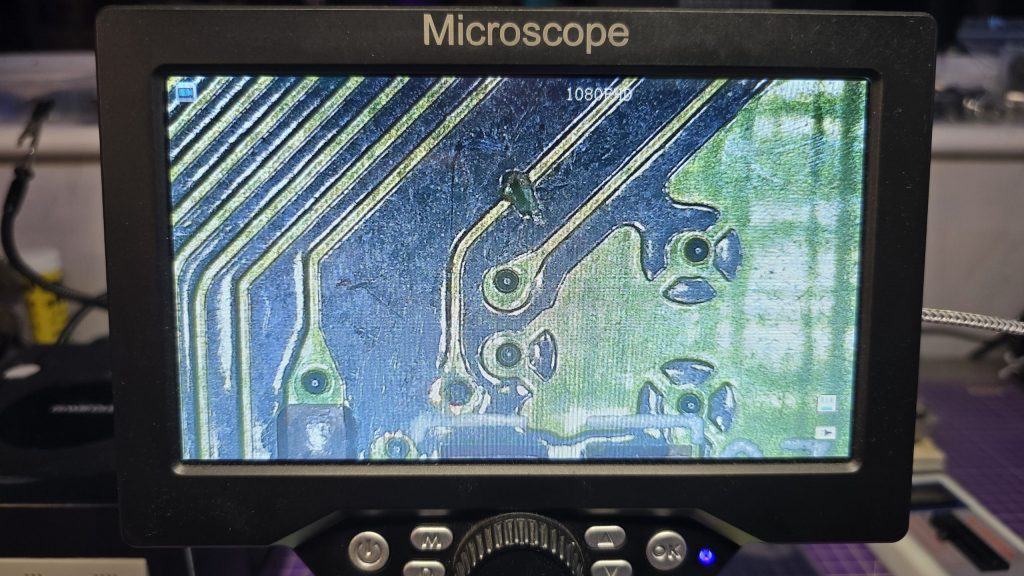
I eventually came across one pin that didn’t seem to be connected to any pin on the FBI chip. So I followed the trace from that pin and found a smoking gun!

Checking continuity between the PCI pin and the via after the break confirmed that there was no continuity. So I carefully scraped away at some of the solder resist and placed a bodge wire across the gap. After confirming connectivity, it was time to do another test.

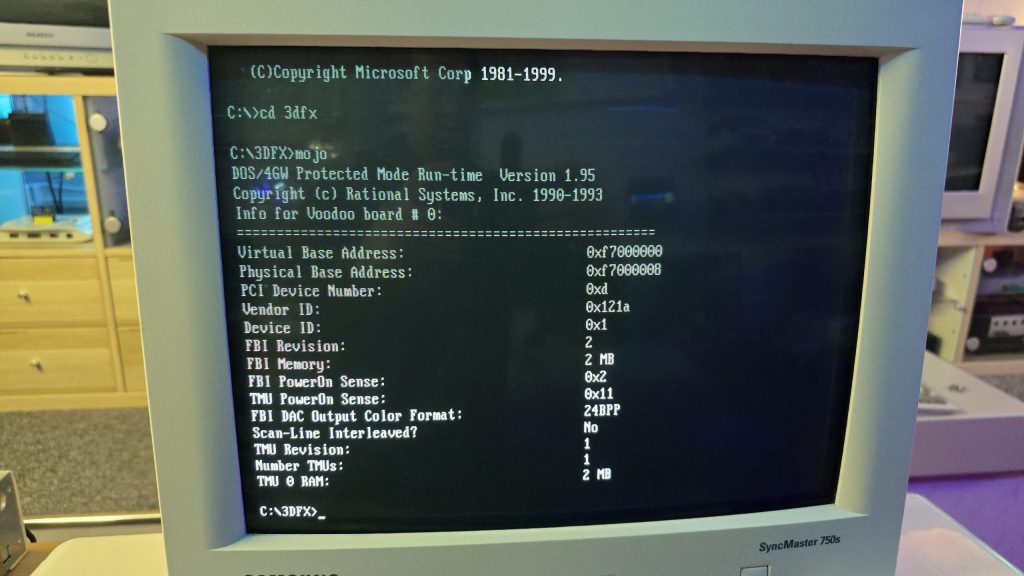
Result!!! After booting directly into DOS and running mojo.exe again, no hanging and everything looked good to go.

So once again, I booted into Windows, this time with no device conflicts. I ran one of the 3DFX demos, and it launched fine, but with one small issue. I could see a pattern of dots on some of the textures.

This was a different fault now, so it was time to move my attention to the TMU chip instead. After carefully inspecting my re-flow work, I noticed the slightest solder bridge between two pins relating to the address bus between the TMU and the memory chips. After clearing this final issue, everything is now working perfectly and I am in possession of a fully working £39.99 VooDoo card.

Posted on Leave a comment

Sony Trinitron KV-28FX68U Repair

Whilst sat browsing Facebook one day, I saw a post from someone local asking if anyone had a CRT for sale as theirs had broken, and they included a photo of their lovely 28-inch Sony Trinitron TV. I messaged him and asked what the fault was, and apparently the picture went off and was now just blinking the power LED with 2 blinks, which according to the service manual translates as Over Current Protection (OCP) triggered.

I said that if he was going to bin it, then I would like to pick it up and attempt to repair it. After all, you can’t really learn to repair stuff without having some broken ones to fix.

A couple of weeks later, he messaged me to say if I wanted to pick it up, then I could have it. So I got in the car and went and collected it. With some help from the Mrs, we got it home and down into my workshop, where I could then start my testing.

The first thing I needed was lots of information about CRT TVs and exactly how they work. And for this, I highly recommend watching videos by Randy Fromm on YouTube (Start with this one) After watching those, I had a very good understanding of what I was looking for. Even so, this Trinitron turned out to be quite a puzzle.

The first thing I did was test the TV to see what happened when I powered it on. And just as the guy had said, upon powering on, all I got was a blinking power LED flashing twice, then pausing and repeating. The issue with this error code is that it isn’t really very descriptive. Basically something, somewhere in the TV was apparently pulling too much current.

The other thing I noticed was that I wasn’t hearing any high voltage at all. Normally, when you power on a CRT, you will hear a crackling sound from the high-voltage circuit. So I downloaded the service manual for the set and started to look at all of the voltages to start with. This wasn’t that easy, because as soon as the TV detected the overcurrent, it shut down the power supply! Luckily, I have an oscilloscope, and this meant I could visualise the voltage for the very brief moment it was there.

From what I could see, the main voltages were present, specifically the 135V B+ voltage, which would go on to generate the high voltage via the flyback transformer. Another common fault on CRTs is the Horizontal Output Transistor; without this part working, you won’t get any image on the screen, and that part could easily pull too much current if it were to be faulty. But after testing it, it looked fine to me, and on my scope, I could see the required 135V pulses being sent to the flyback. So I really expected to hear some high-voltage crackling when the set powered on.

After looking around, I found that two fusible resistors had blown, which were right next to the flyback. I was hoping that they may have been the cause of the issue. But I wasn’t going to be that lucky, and after replacing the resistors, there was still no life in the set.

At this point, I decided I needed to test or replace the flyback. Unfortunately, I didn’t have any way of testing it at the time. So I looked around and luckily I found a replacement flyback on eBay from Malaysia. The part was new old stock, so I snapped it up and waited for it to arrive.

Fast forward to delivery day, and I swapped the flyback over, held my breath and hit the power button. For a split second, I heard a nice static crackle from the CRT, and then it shut down and sat blinking its LED at me. At least this proved that the flyback was indeed faulty.

The next few weeks were slow and painful. My bedtime reading was the schematics for all the various boards inside the TV. Every now and again, I would have an idea of something to test, so I’d run down, test it and come back to bed depressed that it still wasn’t working.

I went through all of the test points on the CRT and compared the waveforms to what was in the service manual and I just couldn’t find anything wrong.

I then had an idea, a potentially dangerous idea which I don’t think I would recommend to anyone! But I had basically run out of things to try.

The way the Over Current Protection circuit worked, is that it measures the voltage drop across a resistor and if that voltage drop was too high (two much current) it would trigger an OCP line that originates from the power supply board and gets sent to the microprocessor board which would then shut down the TV.

So what if I simply disconnected the OCP wire between the power supply and the processor? It wouldn’t get the OCP signal and would keep the TV running. Maybe then, whatever part was causing the issue would very quickly get hot, and using my thermal camera, I could see where the issue was.

Either that, or it would burst into flames and I wouldn’t need to worry about repairing it anymore 🙂

So, I pulled the OCP wire out of the connector block, pointed my thermal camera at the back of the TV and nervously hit the power button.

And……..

It came on and just worked. I carried on looking around with my camera, but nothing looked wrong. So I left it running for a while and carried on monitoring the situation. After about 20 minutes, everything was still fine, so I powered it off, reconnected the OCP wire and was straight back to a blinking light again.

After scratching my head until I had no hair left, my conclusion was that there wasn’t an overcurrent issue, but actually an issue with the overcurrent protection circuit itself.

I took a look at the schematics for this section of the board, didn’t understand how on earth it was supposed to work, so I went and watched some videos about over-protection circuits. The main thing seemed to be that for the OCP to trigger, there would need to be a large voltage drop across the current sensing resistor, but I was getting a 0.13V drop, which seemed perfectly fine to me. So the next step in the circuit was two transistors, which would monitor that voltage and turn on when overcurrent was detected. It looked like one of the transistors was outputting the OCP signal from its emitter, but with the voltage being in spec, there was no reason why it should. So, just for completeness, I swapped out both of these transistors as there wasn’t much else left that it could be.

After replacing these parts, I finally had a fully working CRT again and was able to reconnect the OCP wire.

So the moral of the story, although these newer CRT sets have the luxury of running their own diagnostics. Don’t just blindly trust what they are saying, and don’t rule out the fact that the diagnostic circuit itself could be the fault!

I would also like to point out that although this story seems quite short, these events were spread out over 6 weeks! But I do feel I have learnt a hell of a lot about CRTs on the journey so for that I am quite happy with myself.

Nothing left to do now but kick back and play a bit of Jumping Flash on the PlayStation to celebrate my victory 🙂

Posted on Leave a comment

Microvitec Cub 1441 monitor repair

Back during my early school days, some of the classrooms had BBC Micros in them along with a beige metal CRT monitor with Cub written on it. These displays were nicely matched to the BBC and were very common at the time.

I happened to log into Facebook at a perfect time last week when a guy I know (Zeb) posted on the Acorn group that he had a Cub monitor free for collection for whomever claimed it first. He doesn’t live that far away from me so I jumped at the offer.

Zeb then messaged me to say, he forgot to mention that it was broken and did I still want it. To most people this would have put them off, but for me it made the offer even better! Now I had a reason to learn more about CRT repair!

I went and collected the monitor and brought it back home and after an initial inspection I plugged it in to see what happened. The monitor fired up, I could hear the high voltage working and then a single horizontal line appeared across the center of the screen so I turned it off before any damage was done to the phosphor.

The schematics for these monitors are available to download so I grabbed them and started to look at the vertical deflection part of the circuit. This seemed to get it’s power from a section of the circuit that contained a nice big capacitor that was connected to ground. This looked like a perfect candidate for the fault so I removed the capacitor and tested it with my ESR meter and sure enough it was shorted. I didn’t have a replacement so I ordered one and decided to do some more research while I waited for it to arrive.

I soon discovered that this fault was actually a fairly common issue with these displays and it often kills one of the fusible resistors at the same time. So I tested this and sure enough that resistor was also dead so I ordered some replacements.

Once those parts arrived I fitted them and turned of the monitor and was greated with full vertical deflection.

I was pretty happy at this stage but that was short lived.

I connected up the BBC and powered the monitor back on. Instead of a nice picture, I got a weird squiggly pattern and then magic smoke started to come from the monitor so I quickly powered it off again. The smoke had come from the resistor I had replaced. So it looked like there was a bigger issue that had possibly caused the capacitor and resistor to die in the first place.

I then spent a couple of hours looking at the schematics and testing capacitors and resistors in the vertical deflection section and everything i looked at tested fine.

The service manual had several images of test points and what the waveforms should look like. So I grabbed my scope and started looking at these signals. Most of them were fine but I had no field output signal. I was pretty convinced now that the TDA1170 IC was internally shorted and was causing a high current draw which killed the resistor.

So, I went back on eBay and found out that these ICs were still available. A couple of days later it arrived and as soon as I finished my day job and went down to my workshop and fitted the new part. Whilst holding my breath, I powered the monitor back on and everything seemed to be fine, full vertical deflection and no smoke.

It was now time to connect the BBC back up and see what happened. This time I got a nice clear image and still no smoke!

This was a pretty satisfying repair and during this I have been watching a bunch of videos about CRT theory and repair. The best ones I have found so far are the CRT workshop videos by “Randy Fromm” on YouTube. I would highly recommend watching these as they contain a wealth of information and real world experience within them.

I also have another CRT here now which I am trying to repair, which is a 28inch Sony Trinitorn that has an over current protection fault. That was is going to be a bit harder to troubleshoot but my understanding of how these CRTs work is much greater now so I am confident that one day I will get it fixed.

Posted on Leave a comment

Atari 400 repair

The Atari 8 bit computers have always been a bit of a mystery to me. I never owned one myself when i was younger, and only ever got to play on an Atari XEGS a couple of times at a friends house. I have a few different ones now but I didnt have an Atari 400. So when one popped up for sale at a good price, and with my new favourite words, faulty – spares or repairs, I jumped at the chance.

True to the description, when I powered on the unit, all I got was a red screen. I started with all the normal checks, were the power levels correct? Was the reset circuit working? Do I have a clock signal, and do the data bus and address bus lines look ok?

All of these checks appeared to be fine, so that always makes the repair slightly more difficult. Since I have a few other Atari’s I decided just to try swapping over the CPU and Pokey chips as they can fail. Both checked out fine so I marked them with a nice little tick just to remind myself in case I ever started second guessing the fault.

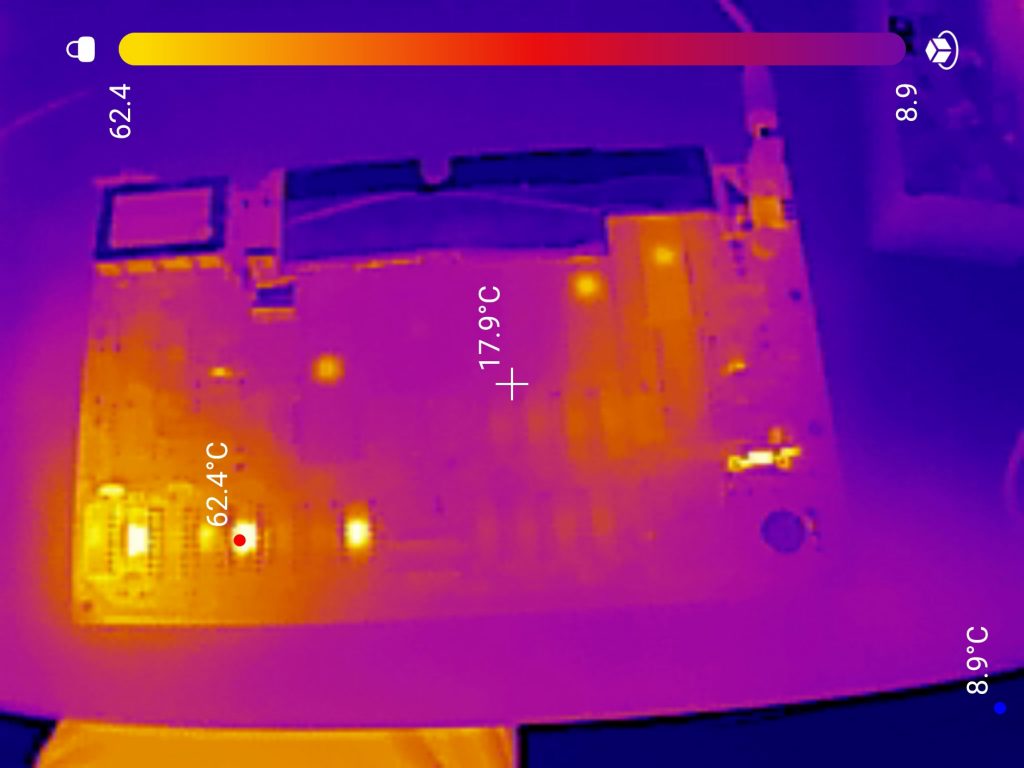
Now seemed like a good time to bust out my thermal camera, annoyingly I forgot to take a photo of this, but I noticed that one of the ROM chips was getting a lot hotter than the other two. I did a bit of reading up and found the Atari 400 has 3 ROM chips, The first 2 contain the OS ROM which are 4k each, then the 3rd contain an FPP (Floating Point Package) ROM which is 2K. This was the chip that was getting pretty toasty.

Concentrating on this chip now, I started looking on the oscilloscope and noticed that although in my first test the data bus and address bus looked fine, what I was now seeing was when the computer is first turned on, the data bus was held high across all pins for a few seconds and then faded down to normal activity. Something very strange going on!

To see if the FPP chip was causing this weird behaviour, I pulled it out and turned on the computer once more and was pretty shocked to see the following screen.

So it was alive! But how? Since I still had the ROM chip in my hand. Well, it turns out the Atari 400 will actually run fine with the FPP ROM removed, right until it needs to do something with the maths stored in this ROM.

So this was good news. The computer itself appears fine and I just have a faulty ROM chip. The issue now is the Atari uses customised 2316 style ROM chips which are hard to get these days. So I turned my attention to one of the 23xx EPROM adapters which allow you to use an M27C64 in place of the 2316 chip.

I ordered one of these from eBay as I didn’t have any in my parts bin.

Whilst waiting for that to turn up I decided to keep on troubleshooting just in case the ROM chip turned out not to be the issue, but instead maybe the chip select circuit wasn’t working. I actually went down a bit of a rabbit hole on this one, since there were 3 ROM chips, I really wanted to understand how the correct chip got chosen. So I found a copy of the memory map for the Atari. Looked at the memory locations for the OS ROM and the FPP ROM, translated these addresses into binary, and then from that worked out that address line 11 through to 15 were what was being decoded into the chip select lines via a 74LS42, 4 Line BCD to 10 Line Decimal Decoder.

As an example, if the last 5 bits on the address bus were 11011, This would set pin 18 on the FPP ROM chip (One of it’s 3 chip select lines) to high, then pin 21 on the FPP ROM chip to high, then the last 3 bits 011 would go to inputs ABC on the 74LS42, which would cause it to set the final chip select line on the FPP ROM to low. This combination of High High Low is the correct combination to select this specific chip.

I used the same logic above to work out how the Lower and Upper OS ROM chips were selected. This is where I hit a bit of an issue. The schematics I was looking at, combined with the decoding above didn’t add up. There was no way the computer could select the Lower ROM or the Upper ROM by themselves, it would always select both ROM chips.

I was fairly sure my workings out were correct, so I went in search of different schematics for the Atari 400. When I found some, even though they were low quality, I was pleasently suprised to see that the first schematics I was looking at were indeed wrong. For some reason I was pretty happy about this, it meant that I understood how the system worked well enough that I could actually disagree with the schematics that were right in front of me.

Notice on the left picture above that ROM 103 and 104 both have the same Chip Select combination, where as on the slightly blurry image, Pin 21 is Active High on one and Active Low on the other. If you are wondering about the 3rd chip select line, it is actually A11 (I would have to work it out, but I think it is used as a chip select on the FPP ROM but may actually be used as an address line on the OS ROM, something to ponder another day).

After all of that I decided the chip select logic all looked to be fine, and my issue was still likely to be the ROM chip itself.

After a couple of days the 23xx adapter arrived and I spent a long time trying to configure it correctly to emulate the FPP ROM. It took me a lot longer than I care to imagine to realise that the pins on the back, of which you need to bridge two of them, were actually in the order 321 rather than 123 (Why!!!!!), once I had worked that out, I set up the adapter by bridging pins 2-3 on 18,20 and 21. Then bridging 5 as the output pin. I wrote the FPP ROM code to my AT28C64 EEPROM chip, and since this was a 64kbit chip instead of a 16, I repeated the ROM code 4 times to fill the chip (I did try it just at address 0000 but that didn’t work, so remember to do this step).

Finally I was ready to plug in the new ROM chip and when I powered on the computer I was greated with Memo Pad. Now the issue here is Memo Pad actually worked without the FPP ROM installed so I wasn’t really testing anything yet, apart from it wasn’t giving me a red screen.

I happened to have an ATARI SALT Diagnostics cartridge kicking around (Yes I did try this at the start of my repair, but it wouldn’t run with the computer in the state it was in). The good thing about this cartridge is you can just burn an EEPROM and stick it in this cartridge to test ROM files. So I download an Atari BASIC ROM as I had read that this needs the FPP ROM to fucntion.

First test was to pull out my new ROM replacement and try Atari BASIC. It loaded and I got the ready prompt, but then a load of garbage appaeared on the screen and it crashed.

Next I placed my FPP ROM back in the socket, repeated the test and this time I had a fully functioning Atari 400.

All that was left was to re-assemble to computer and feel happy that I’d saved yet another computer and gained a lot more knowledge of the Atari 400 along the journey.

And here it is, The Atari 400!

Posted on 1 Comment

A Quantum Leap! The Sinclair QL

My latest eBay purchase was a Sinclair QL fully boxed with manual, power supply and a bunch of microdrive cartridges. This was again listed as not working so was expecting to do another repair.

When it arrived my first test was to check the voltages coming from the power supply. Nothing seemed to be being output so this was definately one of the issues I needed to sort. I didn’t want to make a start repairing this one yet as I am still working on the MSX2. But I thought I’d just open up the power supply and check for any obvious issues.

It all looked clean inside the PSU, so I plugged it back in to check some of the voltage lines only to find they now all looked fine. I checked the voltages at the connector end again and once again everything looked good.

I can only assume a loose connection at this point so I put it all back together for now. I then plugged the QL in to find it all seemed to be working perfectly. I tested both microdrives and they worked fine also.

The only issue I discovered was the keyboard membrane had a break in one of the tracks. This is a common fault with these old membrane based keyboards and luckily brand new ones are still available so I have ordered one and just need to wait a few days for that to arrive.

So, I think I got another pretty good deal with this one. Bit of a shame that it wasn’t much of a repair as I really enjoy getting stuck into that (The MSX2 repair has been great fun in that respect so will post an update about that shortly).

Anyway, here it is. The Sinclair QL

Posted on Leave a comment

MSX2 repair update: It’s working!

When I recieved this MSX2, I had concerns as it had certainly already had a reapair attempted on it. What if this person had tried everything and discovered that a custom chip had blown and it was unrepairable?

Well, I decided to carry on regardless and work through the issue myself. To start off with I checked the basics on the CPU. Clock signal, reset circuit, data and address buses. They all looked fine.

The video circuit all seemed to be operational, I could see the 15khz sync signal but the composite video output was just black.

I noticed that the CAS signal for the main RAM was missing, which suggested that the CPU wasn’t successfully executing code, even though there was a bunch of activity going on. My first assumption was bad memory. I socketed both the video RAM and the main RAM and swapped chips around but it made no difference.

I decided to add a useful tool to my inventory and purchased a mini DRAM tester off Ebay.

One by one I inserted the DRAM chips and they all tested good. Not quite as simple as a RAM fault then.

After reading through the schematics for the Sony HB-F1XD (The closest MSX2 I could find to my model) I noticed the VDP read and write signals came from a custom IC on the board labelled as a MB64H444.

I checked with my thermal camera and noticed this chip stayed completely cold when powered on. My first concern was maybe this chip was completely dead which would be game over for this computer as they are virtually impossible to purchase.

I found the pinout for this chip and probed every pin with my scope. Everything seemed to be in order.

It was at this point that I put the scope back on the composite video pin and noticed it was showing a signal!

How could this be? I’ve not changed anything!

Even though I don’t have the replacement hic board yet, I hard wired the composite video output from the vdp chip into my little monitor and there it was, a perfect working image.

Although I was happy that the computer was working and that all of the custom chips were good. I don’t like things just fixing themselves as it can always break again.

And that is exactly what happened. But I discovered that by putting some pressure on the board I could break and fix the computer at will.

My next job was to find the bad connection, so I started re-flowing the solder joints on the chips in the area where I was bending the board. I also reflowed the solder on the MB64H444 chip. At this point the computer was non working and bending the board wouldn’t bring it back to life. Back to square one 😞

Only this time, I knew all the components were working and I was looking for a bad trace or solder joint.

I went back over the MB64H444 IC as this was the last thing I touched, and that is when I noticed no activity on the A13 address line. Could it really be that simple?

As a temporary test, I soldered a bodge wire from A13 on the MB64H444 up to A13 on the ROM chip.

I crossed my fingers and powered on the machine which greeted me immediately with the MSX logo. And no amount of flexing the board would cause it to not work.

The entire computer brought to a halt because of a bad trace on one of the address lines to this MB64H444 chip.

I’m still not 100% sure what role this chip plays in this computer. The schematics list it as a speed controller. So I will be doing some more reading up now to see why this issue caused the machine to not boot.

I have alsp sourced a modern replacement for the HIC board now, so once this arrives, I will be able to put this computer fully back together and start using it.

There is something so satisfying when you finally find the issue with these old machines.

If you have anything sat in your loft broken and you fancy donating it, I will do my best to bring any computer back from the dead and give it a good home 😀

Posted on 3 Comments

MSX2 repair project

My next repair project is this Sony MSX2 computer. Purchased as not working (black screen).

Unfortunately this machine has a bit more to its history than the eBay advert let on. Upon opening it I noticed that the problematic HIC1 board (The video out multiplexer that tends to suffer from corrosion on these machines) was not only missing, but pin headers had been fitted in its place.

This tells me two things. The hic board on this machine had indeed failed. But also, someone had replaced it with the modern replacement hic board but I guess it still didn’t fix the problem so they took it back out and sold the computer.

So, I need to either build or source a hic board for starters. But even then I probably still need to get the actual machine running.

I have already gone over the board with my scope to see if I can see what is going on. For starters it seems the computer tries to start for a few seconds and then comes to a stop. I can see a horizontal sync and csync but it appears the video signal is just a black screen.

I’ve also noticed that the CAS signal for the system memory is not there. Currently I’m assuming a possible memory fault so I will try swapping that out first. If it still doesn’t appear to be running then I will probably look into the ROM chip next.

All of this is under the assumption that the MSX2 should actually run fine even without the hic board present. Unfortunately I don’t have another MSX2 to test this theory.

This is going to be fun 😁

Posted on Leave a comment

Atari 800XL Repair

I recently purchased a cheap Atari 800XL which was listed as not working. I’ve been trying to find some broken computers as fixing them up and learning about how they work has started to become a big part of this hobby for me.

So when I plugged in the computer and it sprang into life, I was pretty dissapointed. At this time it seemed like the only fault was a loose connection on the power LED.

However, the 800XL has a built in system test mode, and when I ran this it looked a bit odd. All the memory passed the memory test, but there wasn’t enough of it showing. This issue was confirmed when I tried to run a game on the system and it just crashed.

I looked at the system using my thermal camera and couldn’t see any obvious faults with the memory.

I had some spare RAM chips, so decided the next course of action would be to fit some sockets and start swapping the RAM chips around. I decided to fit the sockets one chip at a time and then test swapping the RAM as I go.

As luck would have it, after swapping the first chip, things started to look correct on the system test, and games now loaded without issue.

So, as repairs go, this was a pretty easy one and not the most exciting I have dealt with. But is was nice to pick up a bargain computer and return back to its working state.

My next task will be to give it a bit of a clean up and see what this system has to offer. I have a couple of other 8bit Atari’s but it isn’t really a platform I have spent too much time playing with yet. This is something I need to change.

Posted on Leave a comment

The Master of BBCs

Recently a BBC Master was listed on one of the Facebook Groups I am on. It was listed as not working for £75 so I decided to grab it and try and revive it.

My assumption was that the issue was going to be the Rifa caps in the power supply.

So after waiting for Royal Mail to take a week to deliver a 24hr parcel, it finally arrived.

First of all I opened it up to see what we were dealing with. I was not surprised at all to discover the Rifa capacitors had indeed let go.

Luckily I had already ordered some replacements so a few minutes later, I had the old ones out of the board.

All of the other capacitors in the PSU looked fine so for now at least, I have only replaced the main culprits.

Upon putting everything back together, the BBC got powered back up and it sprang into life. Since the CMOS battery was also dead, I had to reset the settings and replace the batteries.

I really want to set this up somewhere where I can use it easily. So I think I’m going to look into getting an additional desk for my retro room. Hopefully I can setup some Acorn and Amstrad computers as I don’t have any out currently.

Posted on Leave a comment

Acorn Archimedes A3010 Repair

After a trip down to the South West Amiga Group’s latest meet on Saturday, I strangely enough ended up returning home with an Acorn Archimedes A3010. The computer was labelled as non-working and I paid the sum of £50 for the privilege of bringing it home with me.

These computers are notorious for being destroyed by their onboard batteries. Thankfully the previous owner had already cut the battery out and cleaned the board, but then didn’t get any further with the repair.

I don’t class myself as an Acorn expert by any means, but I have done a lot of reading up on the Acorn machines in the past from when I repaired my RISC PC. From my previous repair, I also have an Acorn “POST Box” which is a little USB board that connects to the diagnostic port on 32bit Acorns and gets some extra diagnostic details from the machine.

Upon connecting up the board, I could see a RAM error message with the code 0000FFFF. These error messages are actually in Hexadecimal and therefore translated as 00000000000000001111111111111111 in binary. Indicating that the highest 16 bits of RAM were fine, but the lowest 16 bits were not working. The A3010 has two RAM chips on board and the one furthest to the right is responsible for the low bits.

After grabbing my multimeter and the schematics for the board, I probed all the pins and found the RAS line was not connected (RAS and CAS are used for selecting the Row and Column of memory to be read) and neither were 6 other pins. So my first repair was re-linking these traces. Some I just soldered on top of the board and some I used fine wire from the memory chip to the vias on the bottom of the board.

After this, I had a booting computer but quickly noticed the mouse wasn’t working. Using my oscilloscope I probed the LS241 buffer chip on the board that deals with the mouse signals. All signals looked fine going into the input pins on the chip apart from one bad trace, but there were no output signals at all. Luckily I have a spare donor board for the RISC PC which uses the same chip, so a quick transplant and another wire repair got the mouse back up and running.

Almost there, but one last problem was that the floppy disk drive not working correctly, it would initialise but then return an error saying “Drive Empty”. After doing a bit more research I found that the A3010 used pin 34 on the floppy to determine if there is a disk in the drive. I probed all of the pins and they all had connectivity to the controller chip. But most of the floppy control pins are pulled high to 5v via a resistor. I checked pin 34 and the signal was permanently low.

Further inspection revealed that the trace going to the pull-up resistor was broken. The same issue was affecting the index pin also (Pin 8). With both of these now repaired, the floppy drive came to life and I now have a fully working Archimedes.

Gotta say I’m pretty happy with how that repair went. And what better way to celebrate, than a quick game of Lemmings!